VR Introduction
Envisioneer works directly with Oculus Rift TM and the HTC Vive TM Technology to help professionals and consumers visualize concepts better while making changes on the fly for detailed new features and decor selection. Envisioneer engages the homeowner in the purchasing process early and improves opportunities to initialize a strong business relationship.

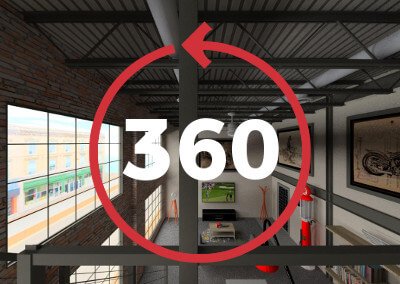
360° View
VR Panoramic! Exported right from the Envisioneer model, panoramic or Google Cardboard views provide your clients with an immersive 3D experience, anytime and anywhere. It’s as simple as sending a VR link to their mobile device and they are viewing! Click on the panoramic example below to see what it’s like!
See More 360 ImagesVR MODE DETAILS
Design and create a model in Envisioneer, then put an Oculus Rift™ or HTC Vive Helmet™ on and enter VR mode. It’s that easy!
Before You Begin: Set Up Your VR Headset
- Connect your VR headset to your computer.
- Ensure all cables are securely plugged in.
- Confirm the headset is powered on.
- Complete the headset’s setup process:
- Define your play area or boundary space.
- Confirm tracking is working correctly.
- Verify the headset display is active and ready.
Launch VR in Envisioneer
Step 1: Open Your Project
- Launch Envisioneer.
- Open the project you want to explore in VR.
Step 2: Select a 3D Camera View
- Click View in the top menu.
- Select 3D Cameras.
- Choose the camera view you would like to use.
Step 3: Enter Presentation Mode
- Go to View.
- Select Presentation Mode.
Step 4: Activate VR Mode
- Click the Goggles icon in the bottom-left corner of the screen.
- Select the VR button.
Depending on your VR headset model, you may need to complete one additional step:
- Press F1 on your keyboard to activate the headset in Presentation Mode.
You’re Now in VR
Your project should now appear inside your VR headset, allowing you to walk through and experience your design in immersive 3D.
Troubleshooting
If VR does not activate:
- Ensure your headset software is running.
- Confirm the headset is properly connected and recognized by your computer.
- Try pressing F1 again after selecting the VR button.
- Restart Envisioneer and your VR software if needed.
Use it while you’re designing to confirm your design choices and show clients as a virtual showroom of what they will get after construction. Designers, builders, homeowners, and developers can all benefit from a virtual reality setup. Gain an edge over the competition and impress clients with virtual reality tours of their design. Have an informed conversation about their home and the changes they would like to see, before problems arise on site.


Need a take away sizzle
Use the HomeViewVR app found on the Google Play Store or Apple App Store to upload your immersive panoramas and Google Cardboard scenes so your clients can view their project on their phones, on their own time and get excited!


Want to Learn More?
Join us for a special webinar that explores “BIM and VR…Innovating the Home Building Industry”
Register Here