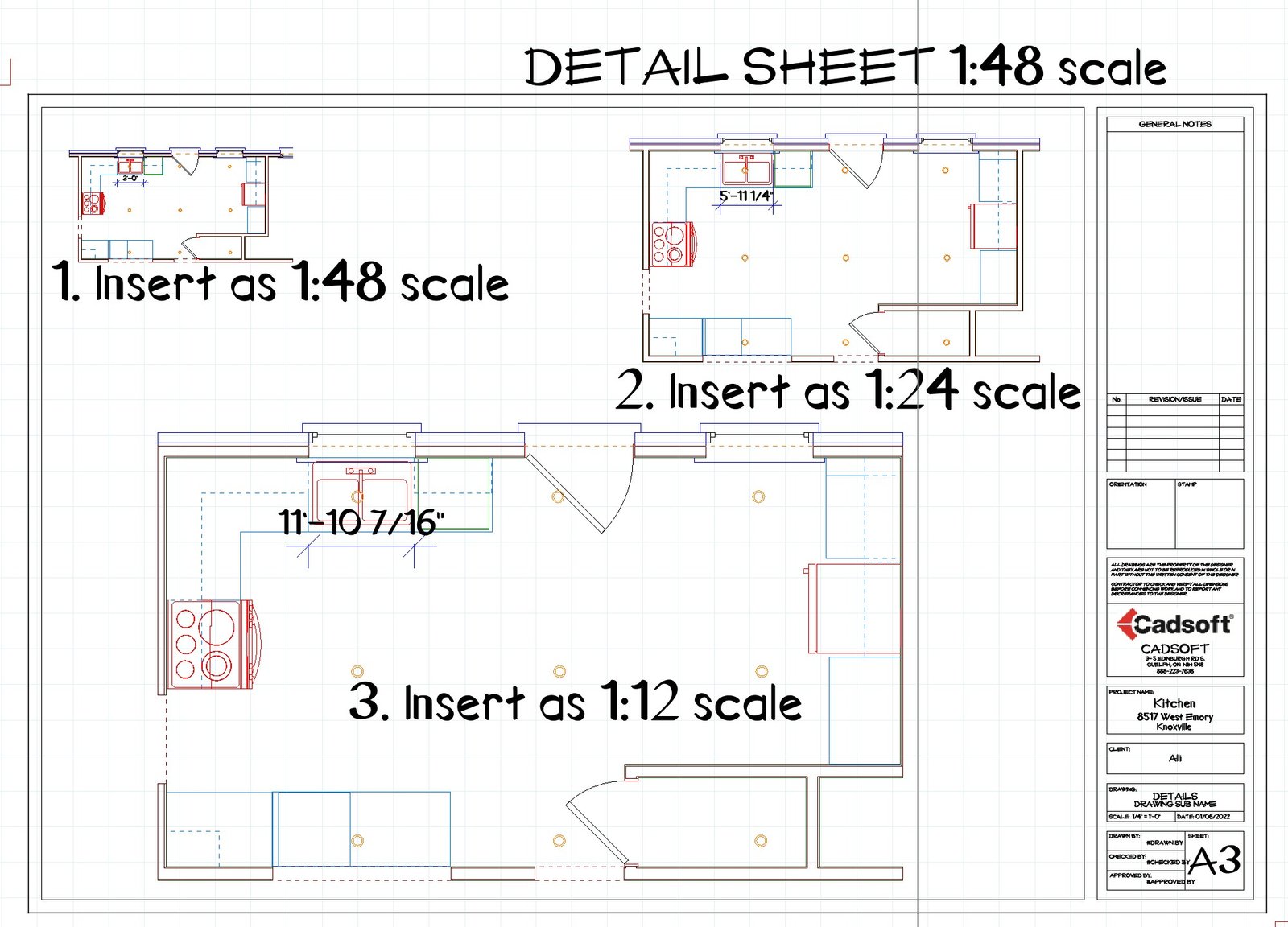
I am trying to insert a 2D plan view of a room into worksheet.
In the worksheet …
I select Define SmartView …
then crop the image desired …
then insert it onto worksheet as DRAWING.
The drawing, allows me to use TOOLS/Linear-Dimensions (correctly) as seen in provided image (center).
The ISSUE is that the drawing is much too small, so I tried to insert image w/2X scale.
That resulted in a large drawing, but now the Linear Dimension Tool now measures 2X the length.
How can I insert the DRAWING at a scale that “basically fills” the available space (so I can then add details)??????
I am probably missing something very basic??
Thanks for any advice help you can send my way.
You can also adjust the size and scale of the dimensions you insert in 2D worksheet space to match your new scale.
When you insert and select a dimension change the scale in the object properties panel on the right of the screen
Hi Louisa … OK, I get it, that user can change each and every dimension scale created in worksheet view to match the difference between 2D model view/scale & drawing sheet scale. However, given a potentially, very large number of edits & added dimensions, is this practical? If that’s all that is available, so be it, I guess. 🙁 Makes more sense (to me) that when inserting a 2D drawing from model to (say) a 2D vector “Detail worksheet”, that there be some option to enlarge the graphical or visual scale without affecting the actual model measurement scale. That way, a user can paste a LARGE image (that is easier to see when you have ‘old eyes’), but also provides accurate dimensions when using the worksheet tools. As you can see from image, when inserted at different scales, the measurment tools also reflect larger scales. I thought (perhaps) if I (say) doubled or quadrupled the worksheet scale (compared to model view scale) that would make a large image – I was wrong, as I also tried to alter the sheet scales to enable the image to visually scale up (w/o the physical dimensions changing) – no bueno.
Seems like there should be a way to do this w/o tedious edits of each and every dimension added … or maybe not?
If you want dimensions to update with the scale of your SmartView, it’s best to place them in Model View first. That way, they’ll automatically adjust when you insert or change the SmartView.
Also, instead of using the Scale tool, try the Redefine SmartView command when you want to resize one you’ve already inserted. That way, the text size will shift properly with the view.
One thing to keep in mind is the architectural drawings are set up so the text size stays consistent no matter what scale you’re working at. It keeps everything clear and easy to read on the final drawings, even if the view itself looks bigger or smaller.
Author
Posts
Viewing 5 posts - 1 through 5 (of 5 total)
You have to log in or sign up in order to use our community forum.