Skybox: How to create or import
-
AuthorPosts
-
2025-11-17 at 17:18 #17770
 RichOParticipant
Is there a way to import/create a new skybox?
I want to place model in a forest scene near lake (for example).
I’ve found numerous forest/lake scenes online, even AI generated, in all sorts of formats.
That said, I have no clue how to import them or even IF this is possible?
Any thoughts? THX 🙂
2025-11-27 at 13:37 #17778louisacoModeratorHi,
-Right click on the 3d camera view’s background>scene properties
-Change background, type from 2D to 3D
-right click on any of the existing skybox images>add new
-select texture>select>upload your custom image
2025-11-28 at 12:45 #17788RichOParticipantThanks, this helps locate where I need to focus efforts to add a new SKYBOX.
<span style=”color: #ff0000;”>Next question</span> : <span style=”color: #ff0000;”>how to import a “Proper” image that resembles a 6-sided-cube.
(should this be a separate/new post?)</span>
<p style=”padding-left: 40px;”>A singular individual (provided) Envisioneer background 3D/Skybox image resembles a 6-sided cube.</p>
<p style=”padding-left: 40px;”>I have found several Skybox images, but their formats are not compatible.</p>-
<li style=”list-style-type: none;”>
- Some images are combined “flat” or “wrap-around” panorama format.
- Some images consist of 6-individual cube face images/files.
<p style=”padding-left: 40px;”>Neither seem compatible with Envisioneer which seems to want a singular image depicting the 6-sided-cube.</p>
-
<li style=”list-style-type: none;”>
- <span style=”color: #ff6600;”>Are there any tricks/tips on how to create a proper image 3D Skybox for Envisioneer?</span>
example: (1) Obtain 6-cube images; (2) Arrange images in Skybox 6-face fashion; (3) Save group as image; (4) Import as texture?
Does scale or sizes (X,Y) of the faces matter w/r/t top/bottom or N/S/E/W views? - <span style=”color: #ff6600;”>Possibly consider adding other import format features to Envisioneer to include flat panoramas or 6-cube images?</span>
2025-11-28 at 13:30 #17789RichOParticipantI tried to import a generic skybox of a forest, w/o success (see images)
I tried to make “white” area of image transparent as well. Neither worked.
As a test, I also applied the sunset skybox provided by Envisioneer – which did work.
Both were used “spherical” option (as did standard images)Any clue what I am doing wrong?
2025-12-02 at 11:34 #17799louisacoModeratorThe skyboxes from Cadsoft are images but there are several steps involved in creating them. You can create your own by following these steps https://www.interlopers.net/tutorials/28841/create-a-skybox-from-photos
Or you can go the AI route and type in keywords the scene you want to create, into an AI skybox generator.2025-12-02 at 13:22 #17801RichOParticipantYikes, the photoshop version seems quite complicated (at this time), as I am somwhat unfamiliar w/photoshop. I suppose similar geometrical calisthenics could also be done by pasting images into something like powerpoint, then move/rotate images, then save as what, a jpg?
The reference to “All that’s left is to convert the configuration into six faces, compile, and voilà!” makes it sound easy, but is far from obvious – to a newbie such as myself. I can figure out how to build 6-face-cube, but what about the blank areas? Black? White? Transparent? Compile, huh, what? Does this mean use a program like Sticher to convert the 6-cube-faces into a singulare “flat/blended” image? Is this then the image that is imported into Envisioneer? Does format matter (jpg, tif, png, etc.)? More questions than answers.
As such, I’m be forced – once again – to the AI option, which I already tried w/o sucess (likely due to formatting issues). It seems that there may be other requirements on the images imported – imposed by Envisioneer – that I/users are unaware of and are not stated anywhere else in documentation? For example, cube .vs. spherical, pixel sizing, or blank area definition of the composite 6-face-cube?
Wishlist:
- Would love to see a complete example/tutorial of a (user or AI) generated skybox that actually works.
Obviously the Skybox background is a wonderful visual tool/option, but users not being able to import personalized backgrounds (forced to use a few generic ones provided by Envisioneer), while appreciated, is limiting w/r/t conveying site plan visuals to interested parties that (say) want to see their virtual home on their lot (rural, sub/urban, commercial/industrial), or lake/river/beach front, or forest/streams, or even perhaps whimsical scenes (Moonscapes, fantasy woodlands), or … … … - Would love to figure out how to take 6 pictures around a house (Left-Right-Front-Back-Top-Bottom) and use that as background.
This would be a nice Envisioneer feature:
(1) Take 6 images w/camera;
(2a) Import/Convert 6-cube images directly into Envisioneer, which converts them into a background.
(2b) Use HomeView to upload 6-cube images, turn them into background, then download background back into Envisioneer.
(2c) Import single “flat/blended” panorama derived from other parties such as 3DVista Stitcher? - Seriously consider expanding catalogs to include more 3D backgrounds that are developed/shared by user community.
AAerospace example VSPAirshow allows users to download models as ‘templates’. Quite useful saving time getting started.
p.s. Louisa … you rock
2025-12-03 at 22:45 #17814louisacoModeratorThank you for your feedback! I will look into it some more, to see if there is a more simple way. Also to see which is the best format to import into Envisioneer. I will definitely add to the wish list for you.
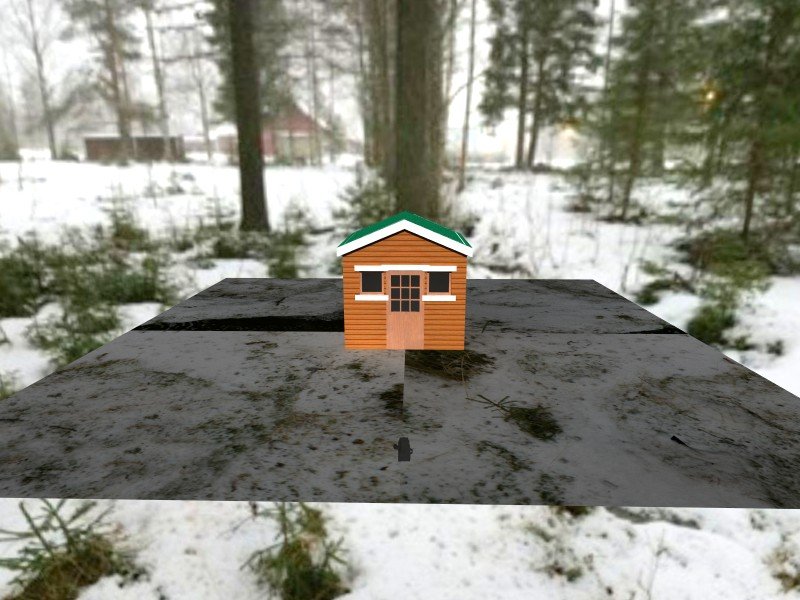
2025-12-06 at 14:31 #17858RichOParticipantGoodnews. (1) Downloaded some square images of a forest in 6-cube format. (2) Took them into powerpoint and arranged them into the 6-cube format. (3) Saved the image as jpg. (4) Opened image and sized it to 4096 x 3072 (4:3 format). (5) Created simple model (see attached). (6) Opened scene properties, selected 3d background jpg image (see attached). Note: ONLY 4096 x 3072 jpg works. ALL other ‘supposedly’ available inport formats (tif, bmp, gif, and png failed). (7) This added a new background (see image inside looking out).
Bad news: (1) ONLY camera views work, i.e. Quickview drops background. (2) the model seems to ‘float’ above the scene ‘floor’ as opposed to resting on it (changing floor location does not help) or wrapping around the ground floor. The issue might be that the forest floow image needs to be made into the terrain image? How that’ll mesh w/the 3D background – Dunno? Will try later.
2025-12-06 at 14:46 #17862RichOParticipantThe result of using the forest 6-cube floor image as the TERRAIN image, did not work well.

p.s. the prior attempt top upload the sample bld file also failed. Below is another attempt to load it as a zip file. We shall see if that also fails.2025-12-10 at 17:28 #17871louisacoModeratorThank you for the update. You can also try this as it is the best Cube Map generator compatible with Envisioneer. Just remember to import as a jpg format.
https://hdri-to-cubemap-converter.vercel.app/2025-12-11 at 13:38 #17877RichOParticipantLouisa …
Thanks for the link.
I tried to post results but got error??
😀
2025-12-16 at 11:54 #17883louisacoModeratorThanks for letting us know, we will look into the restriction.
You can share it with us to support@cadsoft.devpreviewhub.com -
AuthorPosts

This website uses cookies to improve user experience. By continuing to use this site, you accept our use of cookies.