Video: https://youtu.be/sHPR8IBP8kI
Transcript:
Using the elements in the catalog, you can create a commercial bathroom in Envisioneer. The plumbing fixtures will be the same for residential or commercial design, with the main difference being the bathroom stalls.
To insert Bathroom Stalls:
- Under Insert > Interiors > Equipment, select the Structures folder and choose the number of stalls you want in your bathroom design.
- Left click to insert the stalls into your design.
- Right click and Finish to end the command.
The inserted stalls can be modified further after they have been inserted.
- Double click on the inserted Stalls to bring up their properties.
- Under the Basic tab you can adjust the number of stalls, the size of each stall, door positioning as well as controlling the panels.
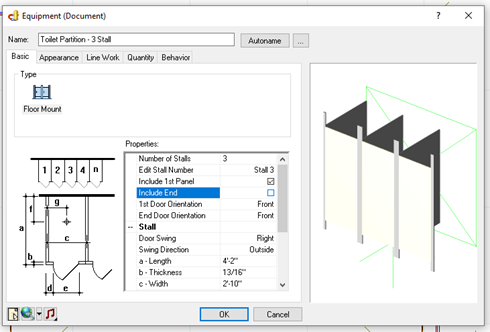
- The Appearance and Line Work tabs will allow you to control the color of components as well as the lines to customize the look of the stalls.
- The Quantity tab will allow you adjust the way the stalls will displayed in your reports.
- The Behavior tab will allow you to adjust the way the stalls are inserted. By default, it should be set to Back.
- Select OK to close the dialog and accept your changes.
Now that the stalls are in, we can add the toilets to sit inside each stall.
- Since the Stalls were added as a block, when we try an add the toilets they will collide with the stalls and not insert where we would like them to. We will need to turn off Collision by either pressing F9 on the keyboard or by selecting the COLLISION button in the lower right portion of the screen.
- Under Insert > Interiors > Plumbing Fixtures or by selecting the Plumbing Fixtures button under the Interiors tab, select the Toilets folder and then choose the toilet you would like to add.
- Move your cursor into the design area and then left click to place the toilet in the first stall. Right click and select Finish.
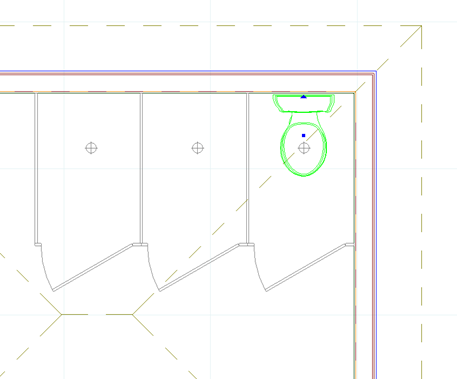
- Select the inserted toilet and then rotate and move it into place using the blue grips, so that it sits above the circle with a crosshair in the stall.
- With the toilet still selected, right click and select Duplicate.
- Left click on the circle with a crosshair and then move your cursor over to the next stall and then left click again over the circle with a crosshair to add the duplicated toilet.
- Repeat this again to add the toilet to the last stall in your design.
- Turn Collison back on either pressing F9 on your keyboard or by selecting COLLISION in the lower right corner, as you will want this control enabled for future insertion of blocks.